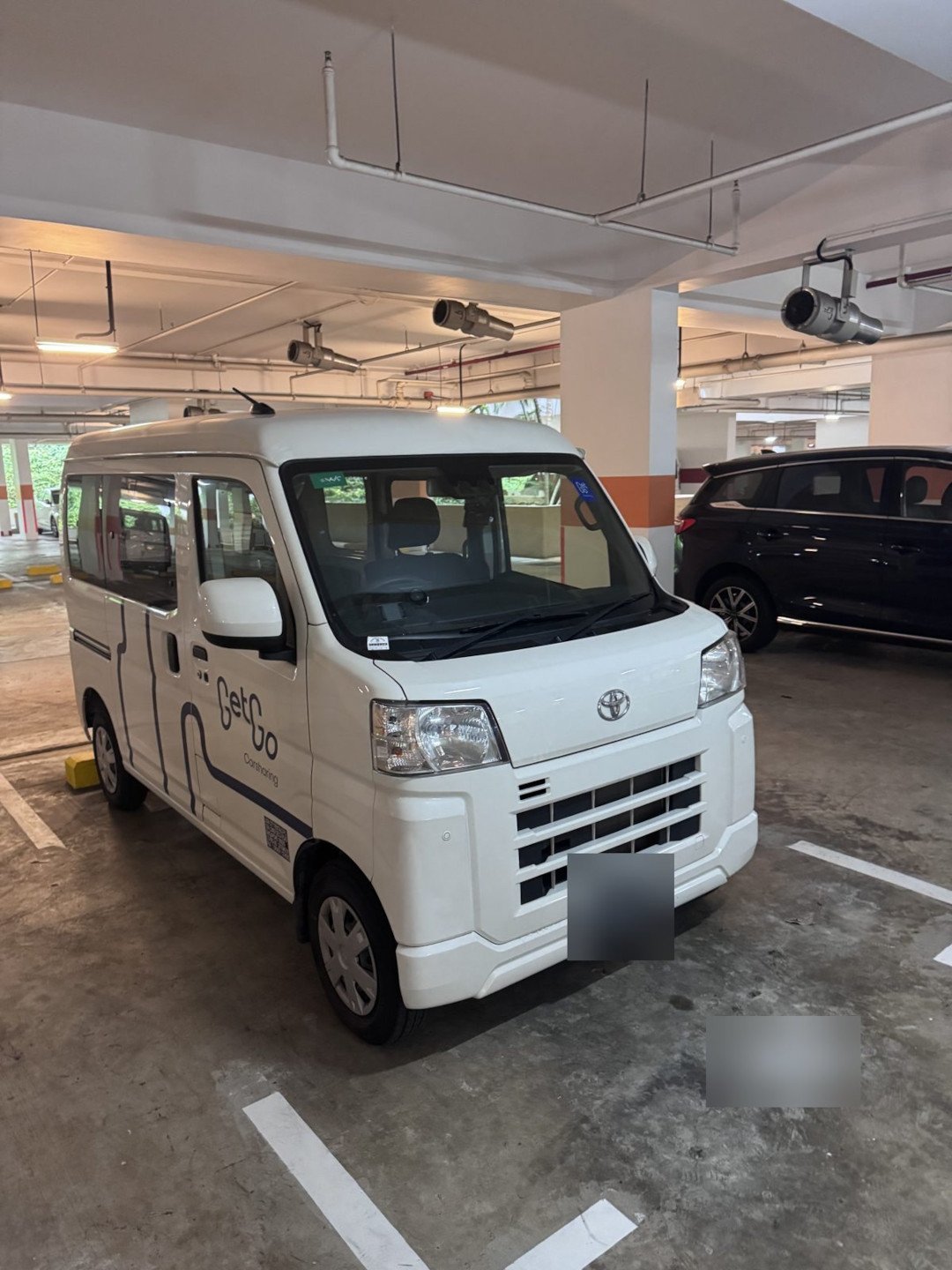
I had a few bulky items to move. Not enough to justify hiring a lorry and two uncles, but definitely too much to stuff into the back seat of a sedan. So I did what any reasonable Singaporean with a GetGo account does: I opened the app and looked for a GetGo van.
This GetGo review is a little different from my usual ones. I’ve already written a complete GetGo guide covering booking, insurance and the basics. This time it’s about one specific trip, the things that went wrong, and the shortcuts I wish someone had told me about beforehand.
New to GetGo? Use my referral code WNWUNLJX when you sign up and you’ll get S$8 off your first drive.
The Car: Toyota Pixis Van
The GetGo van I went with was a Toyota Pixis, parked not too far from my place. It’s a small, boxy kei-style van: nothing glamorous, but that tall, flat cargo area is exactly what you want when you’re moving awkwardly shaped things.
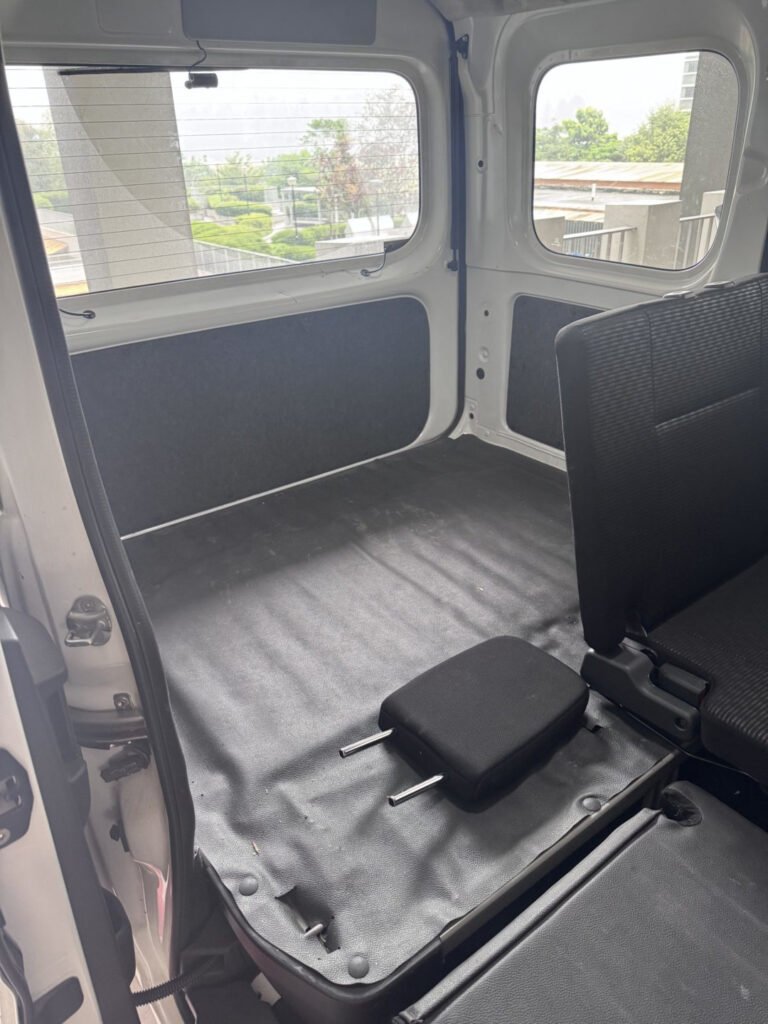
Two things worth knowing before you book. GetGo lists it as a 2-seater (the decal on the door says “PAX: 1 driver, 1 other”), so this isn’t the van for bringing two friends along to help. And a sticker on the back puts the maximum load at 350 kg.
Finding it was easy. The car was where the app said it would be, in the lot it said it would be in. So far, so good.
Then I tried to unlock it.
The Problem: Horrendous Mobile Reception
GetGo works by connecting your phone to the car through the app. That’s great when you have signal. It’s less great when you’re in a car park where the reception hovers between one bar and nothing at all.
At best, and this was rare, I had two bars. Most of the time I had one bar or less. The app would try to connect, think about it for a while, then fail. Retry. Fail. Walk around the car hoping a different angle would help (it didn’t). Retry.
All in, I wasted somewhere between 30 and 40 minutes just trying to connect to the car and unlock it. On an hourly booking, that’s not just time. That’s money ticking away while you stand next to a locked van holding your phone up like you’re trying to catch rain.
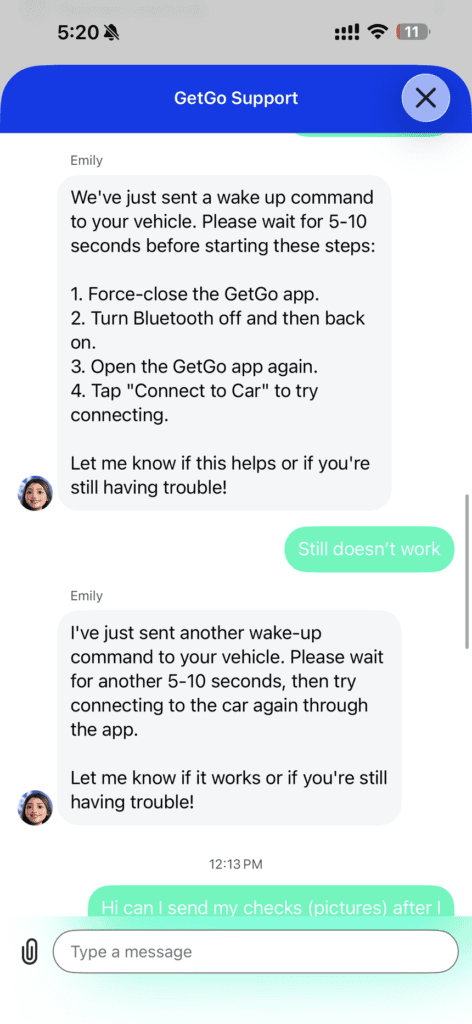
Why does signal matter so much? From what I could tell, the unlock itself happens over Bluetooth. GetGo’s own troubleshooting steps are basically “turn Bluetooth off and on again.” But when I turned to Live Chat for help, GetGo’s digital assistant kept sending “wake-up commands” to the car remotely, and those presumably need the car to have signal too. In a dead zone, I suspect both my phone and the van were struggling.
Is this GetGo’s fault? Not entirely. They can’t control the reception in every car park. But it’s worth knowing before you book a GetGo van (or any GetGo car) parked deep in a basement or a poorly covered multi-storey.
As for this particular car park, I’ll be avoiding it like the plague from now on. Thank goodness GetGo’s network is vast, both across Singapore and around my area, so crossing one location off my list barely dents the lineup of cars I can choose from.
Pro Tip: Choose “Report Later” for the Pre-Trip Photos
Here’s the thing that would have saved me a lot of grief.
Before you start your trip, GetGo asks you to do a vehicle condition report: walk around the car and photograph every side so there’s a record of its condition. Those photos get uploaded to GetGo, and uploads need mobile data. On a decent connection, it’s quick. On one bar of signal, it takes eons.
You don’t have to do the report at pickup. The app lets you choose to report vehicle condition later. That means no long wait for uploads and faster access to the car.
Here’s how I’d do it:
- Choose to report later and get into the car.
- Drive somewhere nearby with much better reception.
- Open your booking details, tap the yellow “Pending vehicle condition report” banner, and finish the photos there.
Same report, minus the 15 minutes of watching a progress bar not progress.
Now for my confession. I did take photos of the van once I’d moved it somewhere with better reception, but I never put them through the app. They just sat in my camera roll.
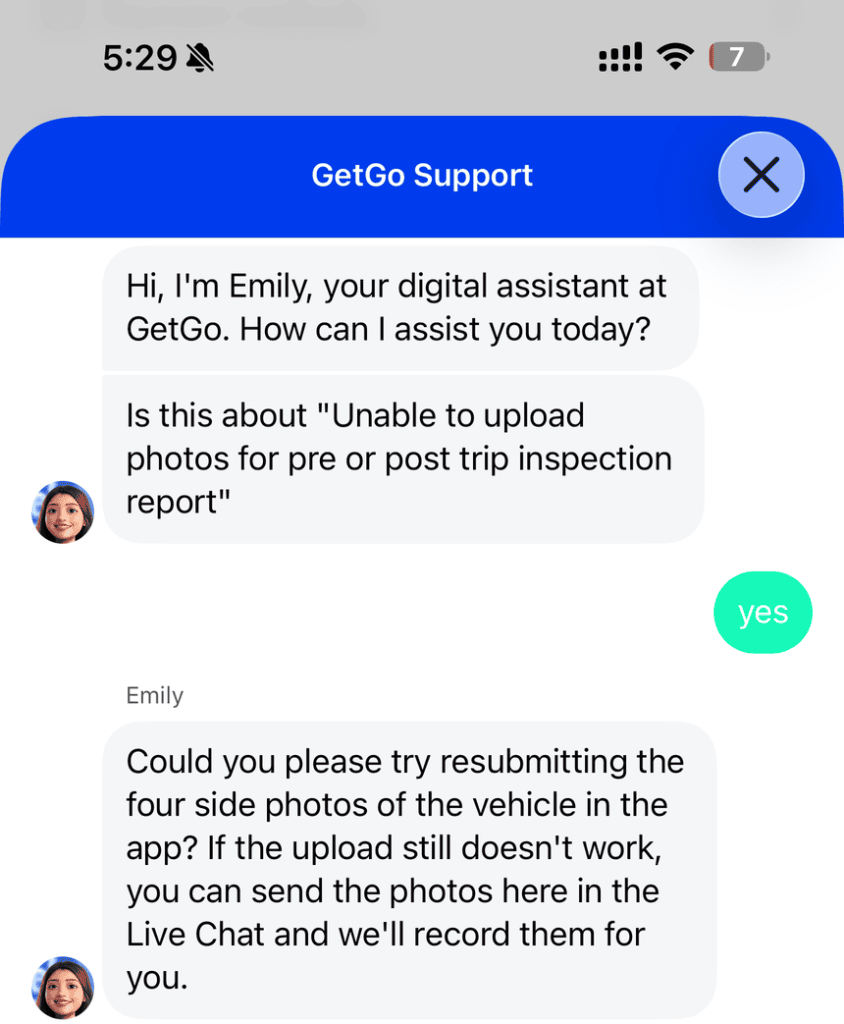
Second pro tip: if the in-app upload won’t work, send the photos through Live Chat. When I eventually asked, Emily, GetGo’s digital assistant, told me to try resubmitting the four side photos in the app first. If that still fails, you can send them in Live Chat and GetGo will record them for you. So I dumped my camera roll into the chat, and it got acknowledged.
Still, don’t be me and leave it that late. GetGo gives you a 15-minute grace period before and after each booking to complete the reports, so you’re not burning paid time on them. I sent mine after that window had closed. Whether late photos carry the same weight if a damage claim ever comes up, I honestly don’t know, and I’d rather you never have to find out. The whole point of the report is to protect you from being blamed for damage you didn’t cause, so get it in on time.
My First Foot Parking Brake
Unlock problems solved, I got in, started the car, and went to release the handbrake.
There was no handbrake.
The Pixis uses a manual foot-operated parking brake: a small pedal down by your left foot, instead of the lever or electronic button I’m used to. It was my first time driving a car with one, and it took me an embarrassingly long time to find it. I sat there searching the centre console like the handbrake was hiding from me.
If you’re used to modern cars with electronic parking brakes, look down near the footwell before you start panicking. Push the pedal to engage; check the release mechanism on your specific car before you drive off.
Refuelling a GetGo for the First Time
This was also my first time refuelling a GetGo, and my first question was a very basic one: what petrol do I even pump? Is this thing even petrol, or diesel? I’ll admit I asked Claude.
Pro tip: the fuel type is listed on the refuelling page in the GetGo app. For the Toyota Pixis, it’s unleaded 95.
A word on asking AI: Claude is handy as a reference, but it’s not a definitive guide. For anything about the car you’re actually driving, rely on GetGo, whether that’s the app or their Live Chat. You can’t go wrong if you follow their instructions.
Then came the next puzzle: where’s the fuel door? On the Pixis, it isn’t where I expected. I hunted around the van for it, then asked Claude again. The release lever sits to the right of the driver’s seat, slightly behind it, and the fuel door it pops open is low down, on the left side of the driver’s door. Save yourself the hunt.
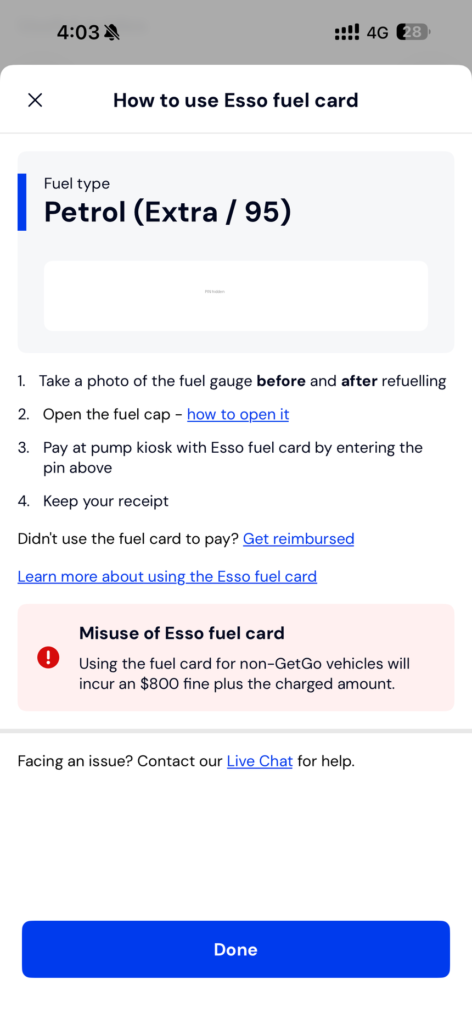
The kicker? The Esso fuel card screen in the GetGo app has a “how to open it” link right next to the fuel cap step. The answer was in the app all along. Which, again, is my point about relying on GetGo first.
The process itself is straightforward once you know it:
- Head to an Esso station.
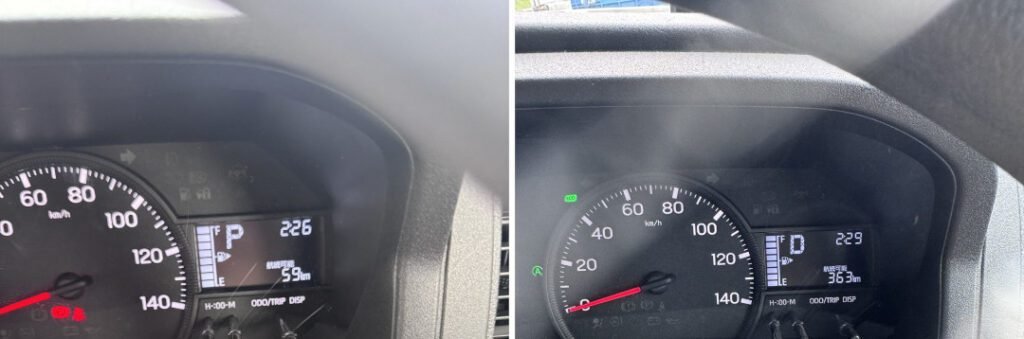
- Take a photo of the fuel gauge before you refuel.
- Use the fleet card in the car to pay.
- Enter the PIN shown in the GetGo app.
- Take another photo of the fuel gauge after refuelling, and keep the receipt.
Don’t skip the photos and the receipt. They’re your record that you actually topped up the tank.
One more thing on that screen: using the fuel card for a non-GetGo vehicle gets you an S$800 fine on top of the amount charged. So, no, you can’t top up your own car while you’re there.
And here’s the nice part: GetGo gives you S$6 off for helping to refuel the car, which turns a chore I was mildly dreading into a quick stop at the pump that pays you back. One heads-up, though: the credit didn’t show up on my booking receipt, so check your account afterwards to make sure it lands.
Returning the Car: Be the Person You Needed
When you return the vehicle, do two things.
Take photos all around the car. Same reasoning as the pickup report. It’s your proof of the condition you left it in, and it protects you if anything comes up later.
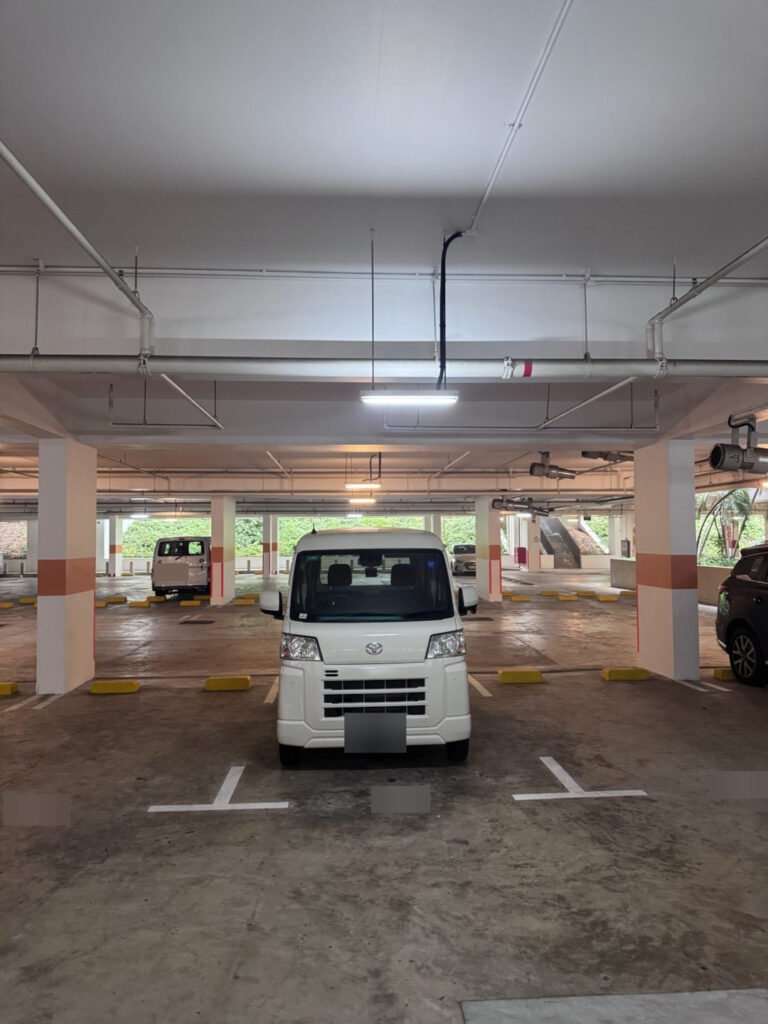
If you can, park in a lot with reasonable mobile reception. I know you don’t always get to choose. But after spending 40 minutes fighting one bar of signal, I made a point of not doing that to the next person. If there’s a spot where your phone actually works, take it. You’ll be saving a stranger the exact headache I had.
This is a car-sharing community, after all. A little consideration goes a long way.
What It Cost
I booked four hours, from 10:30 am to 2:30 pm, and ended up extending to 5:00 pm. Here’s the full damage:
| Item | Amount |
|---|---|
| Time (6.5 hours × S$6/hr) | S$39.00 |
| Mileage (31 km × S$0.44/km) | S$13.64 |
| Standard CDW (5% of time and mileage) | S$2.63 |
| Platform fee | S$1.20 |
| Referral discount | −S$8.00 |
| Total paid (incl. GST) | S$48.47 |
S$48.47 for a GetGo van for most of the day. Mileage is the bit to watch: at S$0.44/km, my 31 km added more than a third on top of the time charge.
That S$8 referral discount came off my first booking, which is exactly what you’d get with my code WNWUNLJX.
My Verdict: Would I Rent a GetGo Van Again?
So, after all that, would I do it again?
Yes. The Pixis did exactly what I needed: it swallowed my bulky items without complaint, and it was close to home. But I wouldn’t rent it from the same car park again. With one bar of signal, the hassle of getting into the van isn’t worth it.
If you’re reading this GetGo review because you’re in Singapore and need a van for a quick move, here’s the short version:
- Check where the car is parked. Basements and heavily enclosed car parks can kill your signal.
- Choose “report later” if reception is bad, then actually submit the report from the pending banner once you have signal. If the upload keeps failing, send the photos through Live Chat.
- Look for the foot parking brake if you can’t find a handbrake.
- Check the refuelling page for the fuel type, pay with the fleet card at Esso, photograph the fuel gauge before and after, keep the receipt, and check that the S$6 refuel credit lands.
- Return it somewhere with decent reception if you can. Pay it forward.

If you haven’t signed up yet, use my referral code WNWUNLJX for S$8 off your first drive. And if you want the bigger picture on how GetGo works, my complete GetGo guide and GetGo referral code breakdown are good next reads.
Have you had a GetGo trip go sideways because of bad signal? Let me know in the comments.